
Download SecureCRT – Secure Terminal Emulator, SSH Client, Remote Access Tool
Overview of SecureCRT
SecureCRT is a professional-grade terminal emulation and secure remote‑access solution designed for IT professionals, network engineers, and system administrators who demand robust encryption and flexible authentication. Built around industry‑standard protocols such as SSH, Telnet, and Rlogin, SecureCRT encrypts passwords, user accounts, and data streams, effectively shielding them from trojans, man‑in‑the‑middle attacks, and other common security threats. In addition to its core terminal‑emulation capabilities, the application offers secure file transfers (SFTP, SCP), data tunneling, and powerful session‑management features that make it easy to juggle dozens of concurrent connections without losing context.
Whether you need to administer a fleet of Linux servers from a Windows workstation, automate repetitive CLI tasks, or maintain compliance with corporate security policies, SecureCRT delivers a feature‑rich, customizable environment that scales from solo freelancers to large enterprises. Its support for classic terminal types—VT100, VT102, VT220, ANSI, Xterm, and more—ensures compatibility with legacy equipment, while modern scripting engines (Python, VBScript, and JScript) let you automate routine workflows and reduce human error. Though originally engineered for Windows, SecureCRT now runs on macOS and Linux, offering a consistent experience across platforms.
The recent update adds smarter GSSAPI handling on macOS and resolves several stability bugs, reinforcing its reputation as a reliable, security‑focused terminal manager.
Key Features That Set SecureCRT Apart
- Strong Encryption & Authentication: Supports SSH1, SSH2, and a broad range of authentication mechanisms including public‑key, keyboard‑interactive, GSSAPI (Kerberos), and two‑factor methods.
- Extensive Terminal Emulation: Emulates VT100/102/220, ANSI, SCO ANSI, Wyse 50/60, Xterm, Linux console, and more, ensuring seamless interaction with legacy hardware.
- Secure File Transfer Suite: Integrated SFTP, SCP, and Zmodem (Ymodem, Xmodem) for reliable, encrypted file movement without leaving the terminal window.
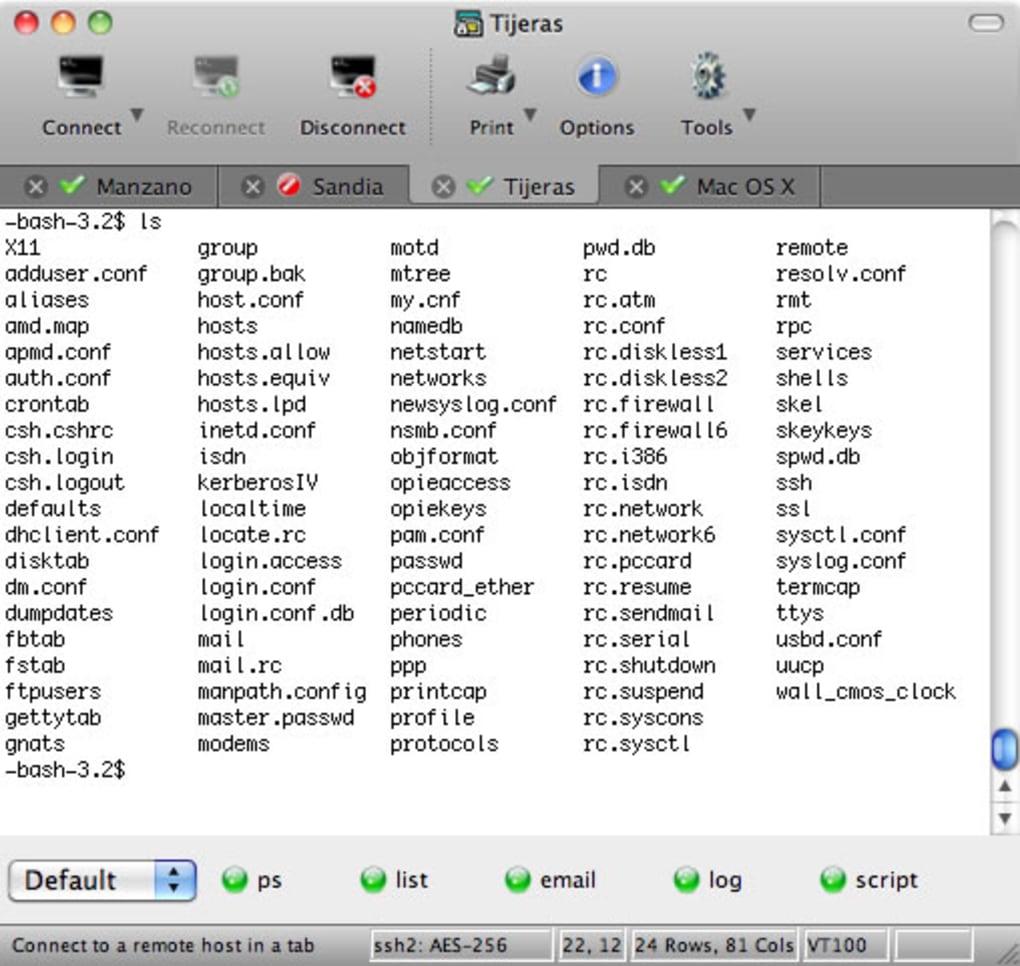
- Advanced Session Management: Tabbed interface, folder‑based session organization, Quick Connect dialog, and customizable button bars for rapid access.
- Powerful Scripting Engine: Supports Python, VBScript, JScript, and Perl, enabling automation of repetitive commands, bulk configuration changes, and scheduled tasks.
- Data Tunneling & Port Forwarding: Create local, remote, and dynamic port forwards to securely route traffic through an encrypted tunnel.
- Customizable UI & Keyboard Mapping: Themes, font settings, color schemes, and user‑defined key bindings allow a personalized workflow.
- Cross‑Platform Support: Native builds for Windows, macOS, and Linux, with consistent feature sets across operating systems.
- Robust Logging & Auditing: Session logging to file, syslog integration, and timestamped output for compliance and troubleshooting.
- Secure Clipboard Integration: Encrypted copy‑paste between local and remote sessions, preventing accidental exposure of credentials.
Installation & Usage – Getting Started Quickly
Downloading and Installing SecureCRT
To begin, visit the official VanDyke Software website and locate the SecureCRT download page. Choose the appropriate installer for your operating system—Windows (.exe), macOS (.dmg), or Linux (tar.gz). The download is secured via HTTPS, ensuring that the installer cannot be tampered with in transit. After the file finishes downloading, run the installer:
- Windows: Double‑click the .exe file, follow the wizard, accept the license agreement, and select the default installation path (e.g.,
C:\Program Files\VanDyke Software\SecureCRT). You may opt for a per‑user or per‑machine install. - macOS: Open the .dmg, drag the SecureCRT icon to the Applications folder, and then launch the app from Launchpad. The first launch may prompt you to confirm the developer, which you can approve in System Preferences → Security & Privacy.
- Linux: Extract the tar.gz archive, run the provided
install.shscript with root privileges (sudo ./install.sh), and follow the on‑screen instructions to create the desktop shortcut.
Initial Configuration and First Connection
Upon first launch, SecureCRT presents the Quick Connect dialog. Enter the hostname or IP address of the remote device, select the protocol (SSH2 is recommended for security), and specify the port (default 22). Choose the authentication method—most users start with public‑key authentication.
If you have a private key file, click the key icon and browse to your .pem or .ppk file. You can also enable GSSAPI if your environment uses Kerberos tickets. After saving the session, click Connect.
The software will negotiate encryption, verify the server’s host key, and open a terminal window with the appropriate emulation mode.
For power users, the Session Manager on the left side lets you create folder hierarchies (e.g., “Production”, “Staging”, “Lab”) and assign custom icons. Right‑click a session to duplicate it, edit its properties, or assign it to a button bar for one‑click access. The integrated Command Window provides a script editor where you can write Python scripts, press F5 to run them, and watch the output in real time.
Best Practices for Secure Operation
- Enable Host Key Verification and maintain a trusted host key database.
- Use Two‑Factor Authentication (2FA) whenever possible, especially for privileged accounts.
- Regularly update SecureCRT to receive the latest security patches and bug fixes.
- Leverage Session Logging to retain audit trails for compliance.
- Configure Idle Timeouts to automatically disconnect inactive sessions.
Compatibility, Pros & Cons – Is SecureCRT Right for You?
Supported Operating Systems: Windows 10/11 (64‑bit), Windows Server 2016‑2022, macOS 12 Monterey and later, Ubuntu 20.04+, Red Hat Enterprise Linux 8+, and other major Linux distributions.
Pros
- Industry‑leading encryption and multiple authentication options keep data secure.
- Rich terminal emulation ensures compatibility with legacy network gear.
- Integrated SFTP/SCP eliminates the need for separate file‑transfer tools.
- Powerful scripting support reduces manual effort and minimizes errors.
- Highly customizable UI adapts to personal workflow preferences.
- Cross‑platform consistency simplifies training and support across teams.
Cons
- License cost may be a barrier for small businesses or hobbyists.
- Learning curve for advanced scripting and session‑management features.
- Mac version historically lagged behind Windows in feature parity (though recent updates have closed the gap).
- Resource usage can be higher than lightweight open‑source alternatives when many tabs are open.
Overall Verdict: SecureCRT remains a top‑tier, security‑focused terminal emulator that balances robust encryption with a feature‑rich user experience. Its pros outweigh the cons for professionals who need reliable remote access, comprehensive session management, and automation capabilities.
Frequently Asked Questions & Conclusion
Is SecureCRT free to use?
SecureCRT is a commercial product. VanDyke Software offers a 30‑day free trial with full functionality, after which a license must be purchased.
Which encryption algorithms does SecureCRT support?
SecureCRT supports AES‑128, AES‑192, AES‑256, Blowfish, 3DES, and ChaCha20, along with RSA, DSA, ECDSA, and Ed25519 key exchange methods.
Can I automate tasks across multiple sessions?
Yes. SecureCRT’s scripting engine allows you to loop through a list of sessions, execute commands, collect output, and even generate reports—all from a single script.
Does SecureCRT integrate with password managers?
SecureCRT can import passwords from external vaults via its API, and it also supports the built‑in credential manager for securely storing private keys and passphrases.
What’s the difference between SecureCRT and SecureFX?
SecureCRT focuses on terminal emulation and secure remote access, while SecureFX is a dedicated file‑transfer client. Both can be bundled for a seamless SSH and SFTP experience.
Final Thoughts & Call to Action
In today’s threat‑laden environment, a reliable, encrypted terminal solution is no longer a luxury—it’s a necessity. SecureCRT delivers on that promise with a mature codebase, frequent updates, and a feature set that grows alongside modern security standards. Whether you manage a handful of Linux boxes or oversee a global network of routers and firewalls, SecureCRT’s session‑management tools, scripting capabilities, and strong encryption make it a worthwhile investment. Ready to protect your data and streamline your workflows? Download the free 30‑day trial of SecureCRT today and experience secure, efficient remote access for yourself.







